Integrating Canva + Creating Templates/Backgrounds for Classroomscreen
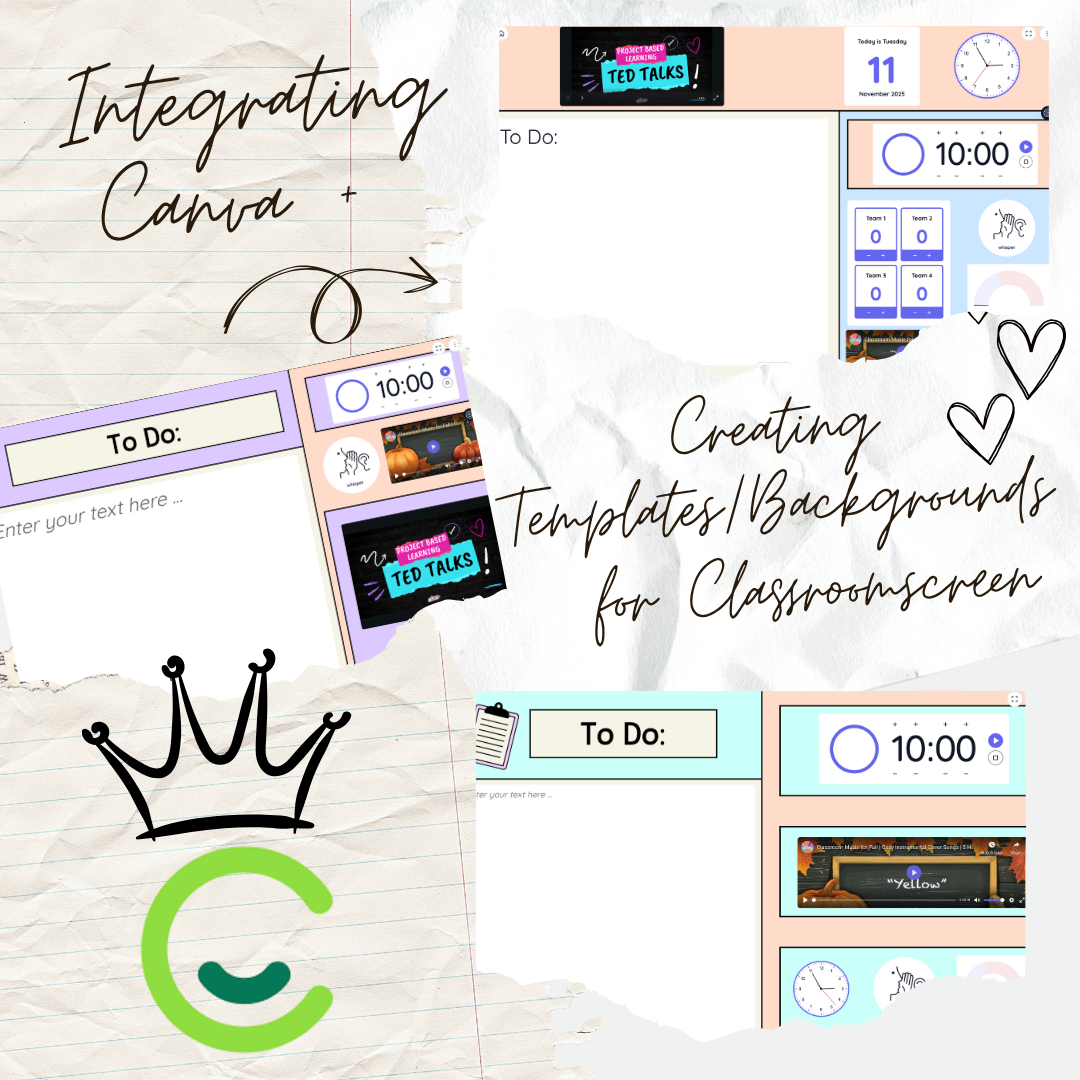
Here’s one of my favourite “power user” moves: use Canva to design really polished backgrounds, slides, or visual templates, then embed them into Classroomscreen so your projected screen looks professional and tailored to your class.
Here’s how you do it (step-by-step)
Why use Canva + Classroomscreen together
Canva is a fantastic (and often free) design tool where you can create custom visuals: class agendas, themes, subject-specific backgrounds, icons, etc. Classroomscreen supports embedding external tools (including Canva) via its Embed widget.
By combining them, you get the best of both: the custom, polished design from Canva + the functional, interactive widgets of Classroomscreen. Your screen becomes both beautiful and supremely functional—great for older students who expect sophistication.
How to integrate: Step by step
Design in Canva
Open Canva (free or paid) and create a new design. Depending on your projection display, you might choose e.g. 1920 × 1080 pixels (Full HD) so it fills the screen nicely.
Create a background or visual template. Example: a slide titled “Today’s Agenda”, themed icons for subject, plus space for your widgets. Or design a full-screen background with your class name/period/time.
After you finish the design, click Share → Embed (this feature is available in Canva; you’ll get an embed code or smart embed link)
Copy the HTML embed code (or smart embed link, depending on what Classroomscreen supports).
In Classroomscreen
Open Classroomscreen and from the widget bar select Embed widget (it may be under “More widgets”).
Paste the embed code you copied from Canva into the Embed widget dialog.
Resize/drag the embed widget to cover the area you want (you could make it full background, or just part of your screen)
Optional: Use the Background widget in Classroomscreen and upload your Canva design as a custom background (if you prefer not to use the embed). The key is to get a visually tailored backdrop.
Now you can place the other widgets (timer, randomizer, etc.) on top of the background/design you created.
Save or pin the layout if you’ll reuse it (depending on account level). Use “Pin” so certain widgets stay across multiple screens.
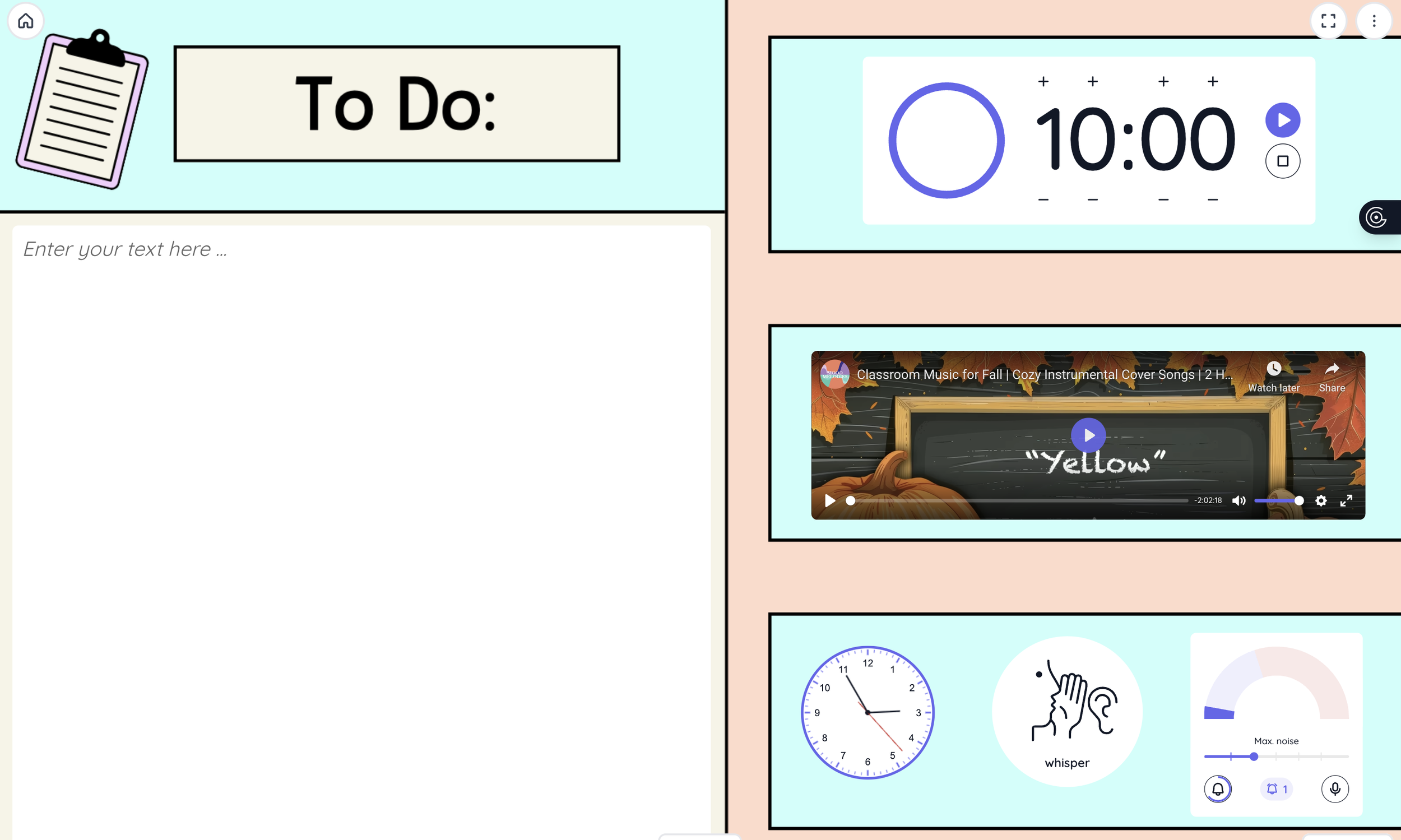
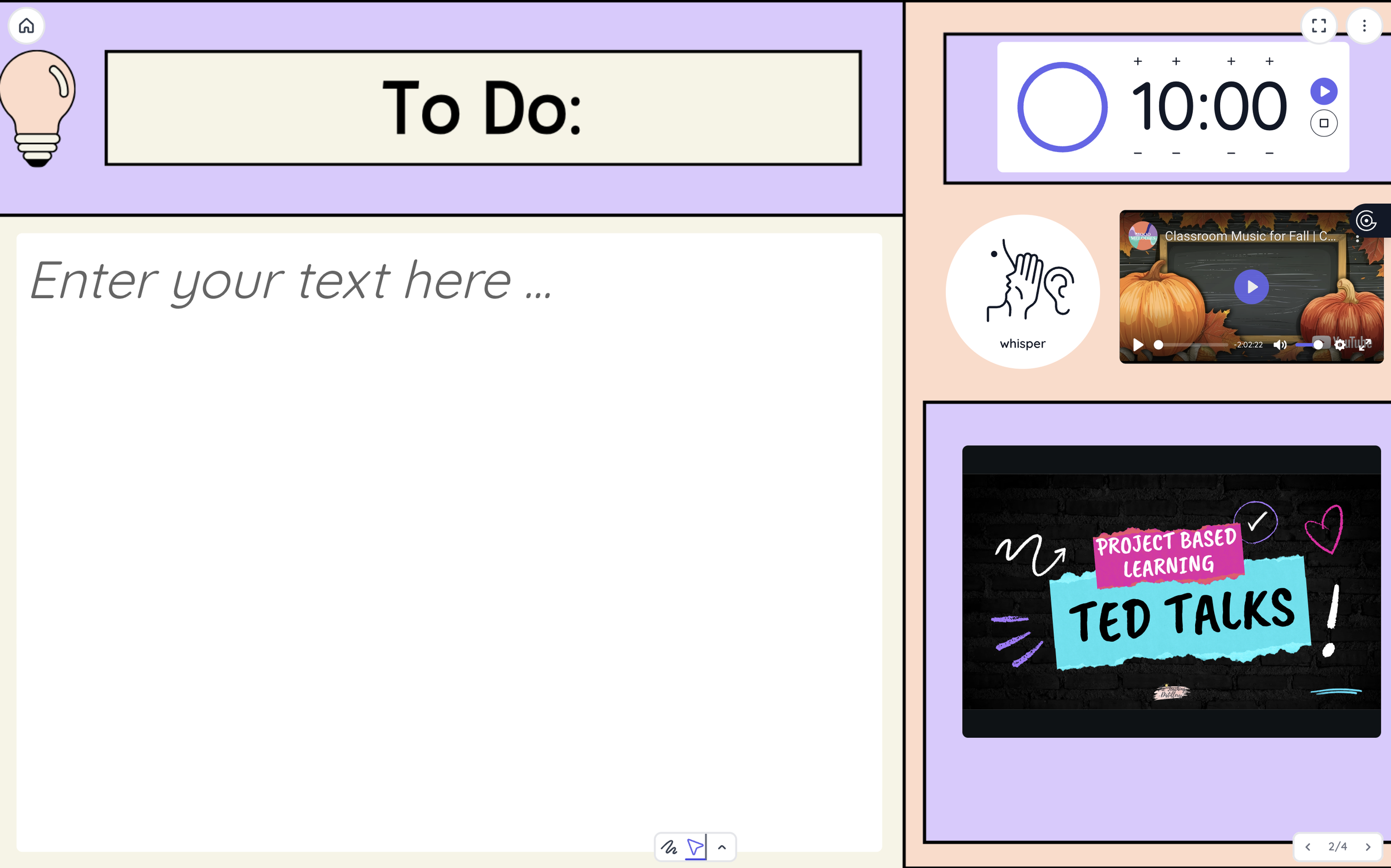
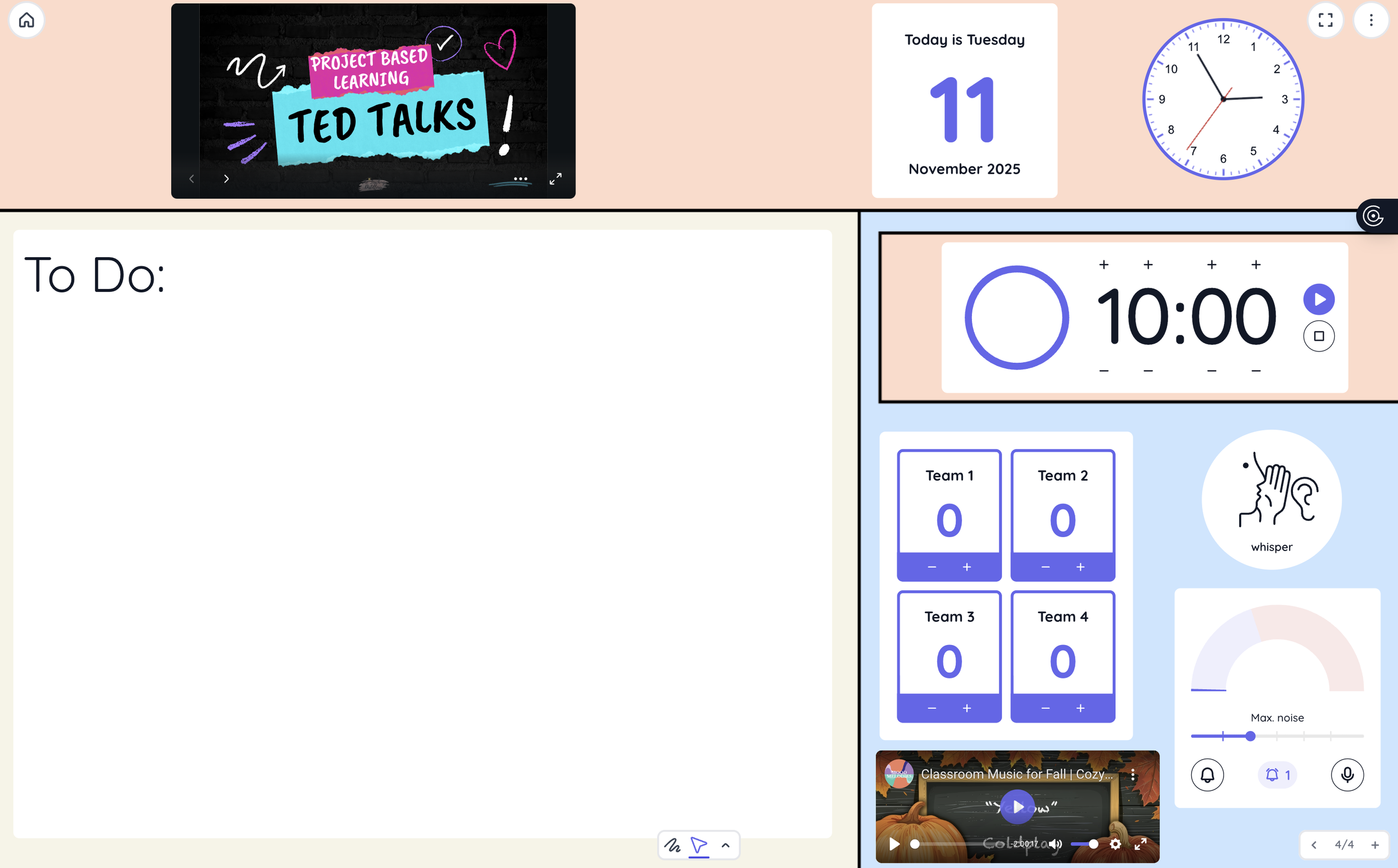
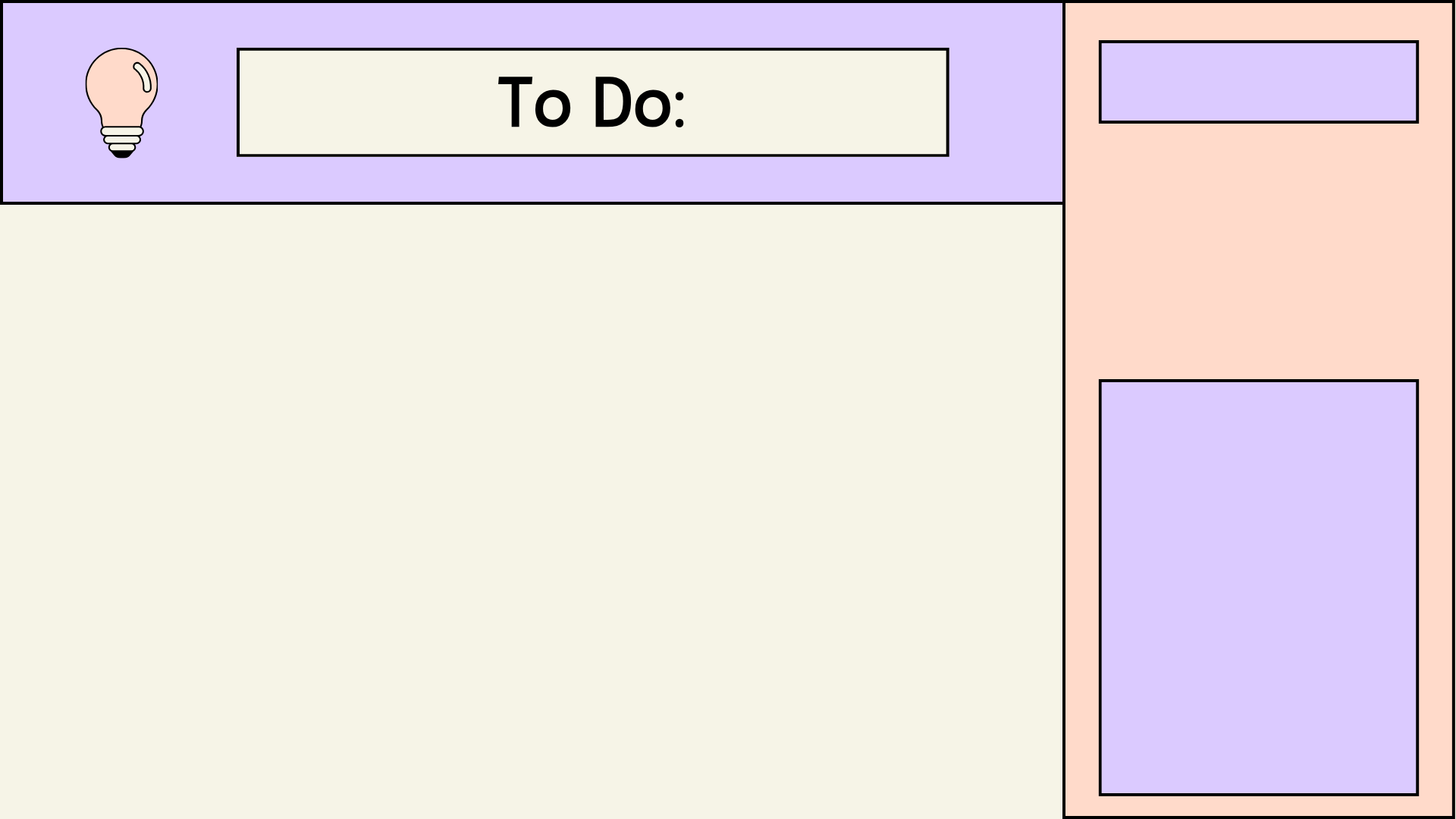
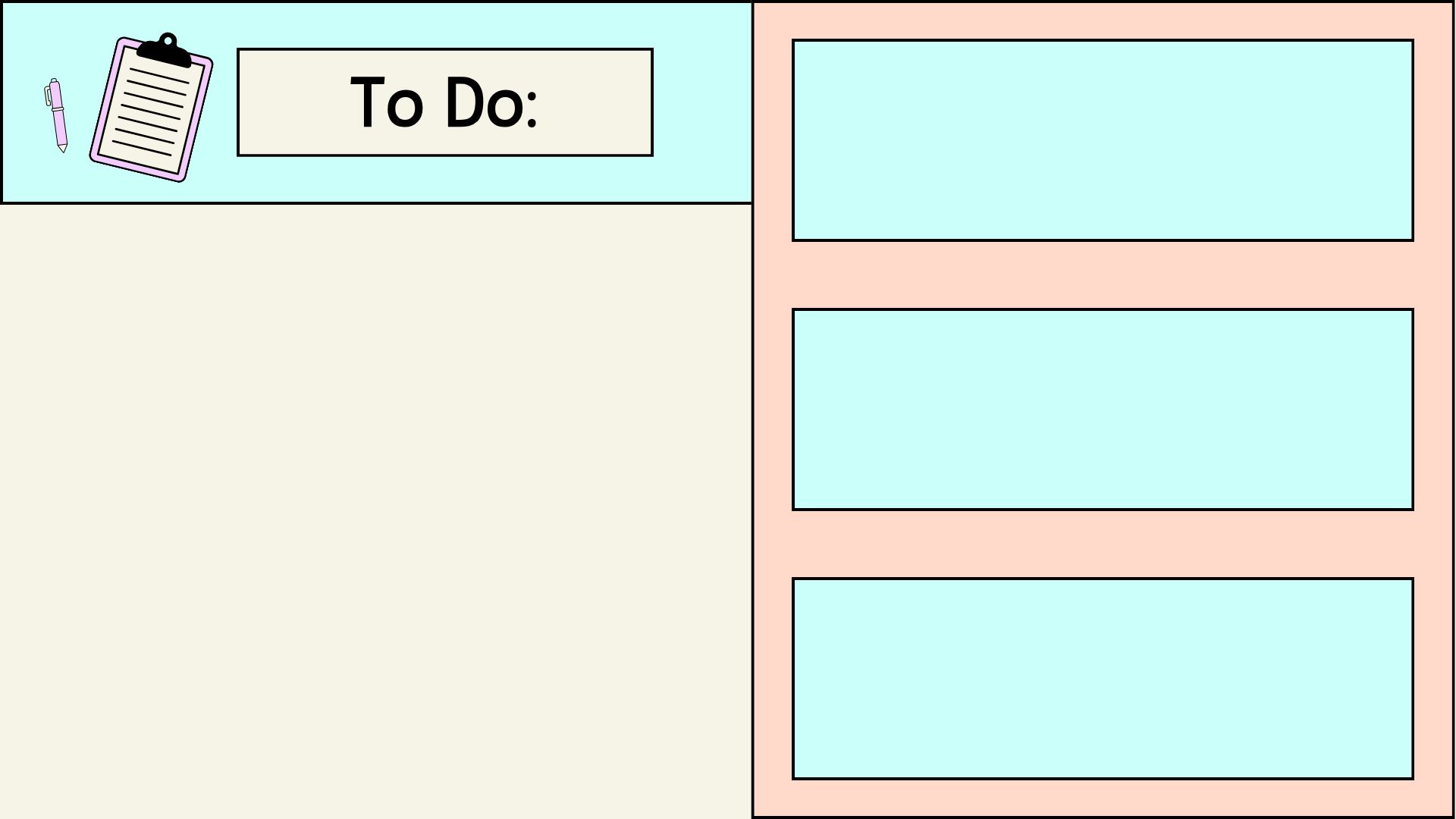
Some practical template/usage ideas
Subject-Starter Screen: At the start of class, have a background with subject title, “Do Now” prompt, and on top: Timer (5 min), Randomizer (for starter student), Traffic Light (behaviour cue), Sound Level monitor.
Group Activity Screen: Background: “Group Work – 12 mins” graphic designed in Canva. On top: Timer, Group Maker widget, Embed (Padlet or other collaborative board), Sound Level.
Exit Ticket Screen: Background: “Exit Ticket” visual, with Poll widget on top, Text box for instructions, Countdown timer (2 mins).
Remote/Hybrid Ready: Canva design includes your Zoom link or shared doc link; embed that; top it with Text box for instructions, Timer, Poll for feedback.
Tips & Tricks
Make sure your design in Canva has clear space where your widgets will appear (so your timer or text box doesn’t hide important info).
If using projector or interactive whiteboard, check aspect-ratio: Classroomscreen supports 16:9, 4:3, etc. Make sure your background/design matches so it’s not distorted.
If you embed via Canva and then change the Canva design later, the embed will update automatically (handy!) because Canva embeds support live updates.
When designing backgrounds, consider “subtle” visuals so your widgets (timers, names) stand out rather than compete with loud visuals.
For quick start, use one of the ready-made screens in the Classroomscreen Library and then swap the background/design to your Canva version.
Final Thoughts
In my experience as a secondary educator, Classroomscreen has transformed how I run the classroom. It’s not just about “digital whiteboard” but more about workflow, structure, visual clarity, engagement. The fact that you can layer timers, name pickers, noise monitors, polls, embed other tools—and do this with a free version is huge.
When you add Canva into the mix, the look and feel rise to a new level: your screen becomes purposeful, branded, high-quality, and that matters for secondary students who are used to slick digital design.
If you are teaching secondary (grades 7-12), I strongly encourage you to:
Give Classroomscreen a try (no sign-up required)
Explore its widgets and think about your classroom routines (time management, group work, transitions)
Use Canva to design one or two custom backgrounds/templates that reflect your subject or class identity
Embed your design in Classroomscreen and layer your widgets—practice this for one class.
Reflect on how it helps: Are transitions smoother? Are students more aware of time? Is engagement higher?
Once you see how much smoother a class runs when your screen is well-designed and supports your routines, it becomes one of your “go-to” tools.