Why I Love Using Classroomscreen in My Secondary Classroom
As a teacher who’s always on the lookout for tools that make teaching smoother, student-friendly, and more engaging, I can say without hesitation that Classroomscreen is one of the must-have digital teaching tools. Whether you’re teaching in-person, hybrid, or fully online, it helps you manage the class, engage students, set routines, and create a visual “home base” on your screen. In this blog post I’ll walk you through:
What Classroomscreen is and how it works
The many widgets you can use (yes—there are tons!) and why they’re amazing
The free version for educators: what you get, what the limits are
How you can integrate Canva to create templates/backgrounds and embed them in Classroomscreen for that extra polish
What is Classroomscreen?
Classroomscreen is an online whiteboard-style tool built specifically for teachers. It’s designed to be projected for the whole class (via IWB, projector, screen share) and gives you a dashboard of many useful “widgets” (small interactive tools) all on one screen.
In simple terms, rather than having to open 4-5 different apps (timer, random name picker, noise monitor, agenda display, etc.), Classroomscreen lets you bring many of those into one neatly-designed screen. You set it up once (or beforehand) and you’re ready to go.
It’s beautifully simple but richly layered—perfect for secondary classes where transitions matter, visuals matter, student engagement matters.
What are the Widgets?
One of the strongest features of Classroomscreen is the library of widgets. These are the tools you drop onto your screen to support various classroom activities. They’re categorized nicely (time-management, engagement, lesson management, gamification).
Here are some of my favourites (and how I use them), grouped by function:
Time + Routine Management
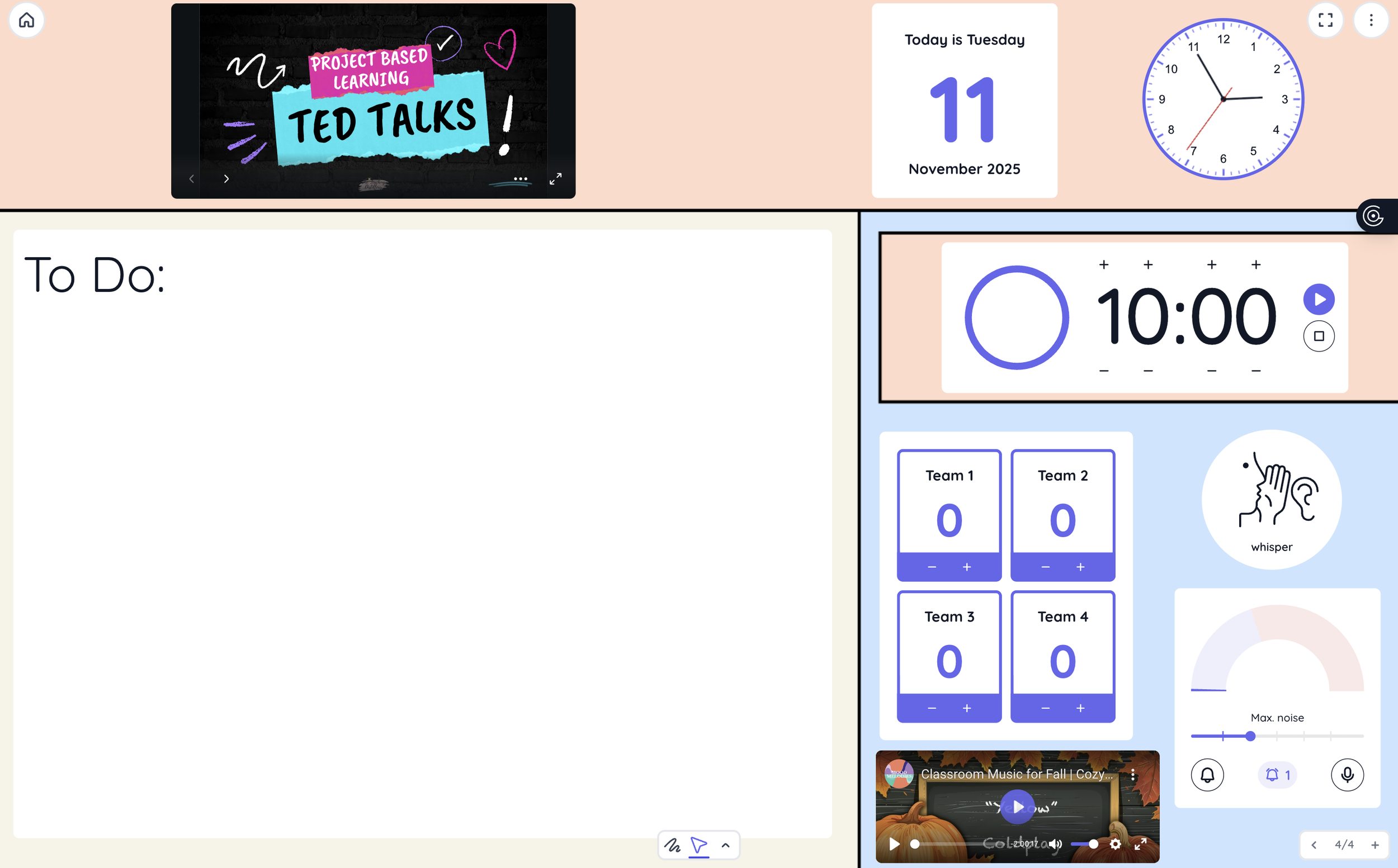
Clock / Calendar widget: Display current time (12h/24h), date, etc. Great for students to orient themselves.
Timer & Visual Timer: Use a countdown (or a visual “bar” timer) for tasks, transitions, group work, warm-ups. Keeps students aware of time.
Stopwatch: When you want to measure how long something took (e.g., student presentations, partner talk time).
Event Countdown: If you have a big event coming (exam, parent night, end of term) you can display a countdown to build focus/excitement.
Timetable: Display your class schedule/periods. Useful at the start of class so students know what’s next.
Why this matters: Secondary students often benefit from visible structure. The timer helps transitions go smoother (students don’t ask “how much time is left?”). The countdown builds momentum. The clock + calendar ground us in real-time. When you set norms (“You have 8 minutes; the timer’s going”) students respond.
Engagement & Participation
Randomizer (or Random Name Picker): Pull a random student name so that it’s fair and keeps everyone alert.
Group Maker: Quickly assign students into groups (“make 4 groups of 3”) with name lists. Saves you time, avoids that awkward “pick a group” moment.
Poll widget: Ask students a question (smiley faces, multiple choice, true/false) and get instant responses. Great for formative assessment, check-ins.
Embed / Hyperlink: Bring in other tools (web pages, interactive boards, quizzes) right into your screen. Keeps everything in one place.
Why this matters: At the secondary level, engagement matters more than ever (especially in hybrid/remote segments). These widgets turn passive “look at me teach” into more interactive, student-involved class time. Randomizer ensures participation. Poll gives you quick formative data. Group Maker structures collaboration.
Classroom Management & Visual Cues
Sound Level: Uses your device’s mic to monitor how loud the class is; the visual gauge shows if students are too loud. Brilliant for self-regulation.
Traffic Light: Use red/yellow/green signals for behaviour expectations, task progress, group discussions, etc.
Work Symbols: Icons that indicate “Work together / Ask neighbour / Whisper / Silence” etc. Helps set expectations quickly.
Text box / Stickers / Background: Annotate your screen with instructions, reminders, objectives. Use stickers for visuals. Use background to set mood/theme.
Why this matters: Managing secondary classrooms often hinges on clear visual expectations. When students see the traffic light turn yellow, they know “switch to whisper”. The sound level monitor reinforces the norm without the teacher needing to raise their voice. Visual cues save your voice and cut down on micromanagement.
Creativity / Customization
Draw: A tool where you and/or students can draw or annotate on the screen. Good for brainstorming, quick sketches, mind maps.
Dice / Coin / Rock-Paper-Scissors: Fun little gamified tools (roll a die, flip a coin) which can be used in warm-ups, decision-making, group tasks.
Background widget: Choose or upload a background behind your widgets—this gives your class a distinctive visual theme and supports engagement.
Why this matters: Especially in secondary, aesthetics and novelty matter. A well-designed background or a quick draw board adds polish and helps you avoid “just another slide” feel. These tools help you maintain energy, variety, and a pro-look to your projected screen.
The Free Version for Educators: What’s Included & What’s Not
One of the things I appreciate most: Classroomscreen offers a free version that is extremely usable, especially for teachers. Here’s a breakdown:
What you get for free
Access to all the core widgets (the basic library) without paying.
No login required (you can start using right away) though creating an account unlocks more features.
In the free version you can: save up to 3 name lists (for Randomizer/Group Maker) according to one source.
You can embed tools (via the Embed widget) and use your own backgrounds uploaded in many cases.
Free templates/screens: There’s a library of ready-made screens that you can open and use, which is a huge time-saver.
What the paid “Pro” version adds (so you know where limits are)
Ability to save and organise many more screens/workspaces. (Free version: limited).
More saved student name lists (free gets fewer).
Custom widget themes, advanced backgrounds/slideshows, private sharing, etc.
My Verdict as a Secondary Educator
If you’re teaching secondary school I strongly recommend starting with the free version. You will get perhaps 80 % of what you need: timers, randomizer, noise monitor, poll, group maker, backgrounds, etc. I’ve used it for full classes with zero cost.
If you then find you’re using it daily and want to invest time creating many reusable screens, or want advanced features (like full class-set of name lists, custom themes, shared school dashboards), then upgrading to Pro is very reasonable…just $36 dollars a year.
The fact that you can dip your toe in for free means you can experiment without risk—and that supports good teaching innovation.